
qCalc User Guide
qCalc End-User Guide
The following guide is intended for users of qCalc who access the application through its web interface. It is designed to provide instructions on how to navigate and interact with calculators, manage the display of calculator cards, maintain a record of user work, manage user accounts, and seek assistance. This document does not address the development of calculator code, the editing of documentation, or the administration of a qCalc installation.
Getting started
qCalc is a web application containing calculators for everyday tasks. A calculator opens as a card in the main work area. You can open several cards during a session and close them individually when you are finished.
You can use many calculators as a guest. Create an account and sign in when you want account-specific features such as personal calculators, catalog and favorites, saved input variants, or create, save and share your own calculators.
The page layout
The interface has four useful areas:
- Top bar: site logo, controls for showing or hiding the sidebars, the collection button, and the user account menu.
- Main sidebar: navigation to the home page, catalogs, built-in tools, settings, and the user guide.
- Secondary sidebar: controls for opening saved input files, finding units, and adding a calculator by name.
- Work area: calculator and information cards. Each card has its own menu, help link when documentation is available, and close button.
On a smaller screen, the sidebar controls are shown as buttons. Use the main-sidebar button to open the main navigation and the more/secondary-sidebar button to open the secondary tools.
Output Collection
The collection button in the top bar opens Output Collection. Use it to gather outputs from calculations and aggregate them when a calculator supports that workflow. The number on the button shows how many collected items are currently available.
Main sidebar options
Home
Returns to the home work area. Use it as a starting point or when you want to see the normal calculator workspace again.
Calculator Catalog
Opens the standard qCalc catalog. Browse categories to see the calculators supplied with the site. Select a calculator name to add it to the work area.
The catalog may show a favorite control beside a calculator. Use it to mark a calculator for easier access in the catalog.
Quantity Catalog
Lists quantities and units known to qCalc. Use it when you need to inspect a unit or find the correct spelling of a quantity before entering a value in a calculator.
For a quicker unit lookup, use Search Unit in the secondary sidebar.
Create My Calculator
Opens the personal-calculator area for the users. This option is for making a calculator from the user interface. If you only need to run an existing calculator, use Calculator Catalog, Public Catalog, Personal Catalog, or Add Calculator instead. Anonymous users can create calculators within qCalc, but in order to save these calculators, they must sign up for an account and then sign in.
Personal Catalog
Shows calculators associated with your account. This is where you can find calculators you have created or otherwise have available in your personal catalog. Sign in if the site asks for an account.
Public Catalog
Shows calculators shared for public use. A public calculator is separate from the standard calculators shipped with qCalc and may be provided by another user or organization.
Clear Screen
Clears the current calculator cards from the work area. Use this when you want a fresh workspace. Save any input you may need before clearing the screen.
Unit Converter
Opens the unit-conversion calculator. Enter a value and its source unit, choose the target unit, and run the conversion. You can also use the unit search in the secondary sidebar to look up unit names.
Quick Calculator
Opens a general-purpose calculator for quick arithmetic and common expressions. For specialized work, choose a calculator from a catalog instead.
Currency Converter
Opens the currency-conversion calculator. Enter the amount and currencies requested by the form. Currency results depend on the exchange-rate data available to the qCalc site, so check the displayed rate date when precision matters.
Expression Evaluator
Opens the expression evaluator for entering supported mathematical expressions. Follow the calculator's own input guidance and review the result before using it in important work.
Command Line
Opens qCalc's command-line style interface. It is useful for users who prefer entering commands or expressions directly. It is still a user interface for calculations; it is not a server administration console.
Settings
Opens user-facing calculator preferences. The available settings depend on the qCalc site. Change a setting, then use the control provided by the page to apply or save it.
User Guide
Opens the in-application documentation and guidance. Use it when you need an overview of qCalc or want to learn how a feature works.
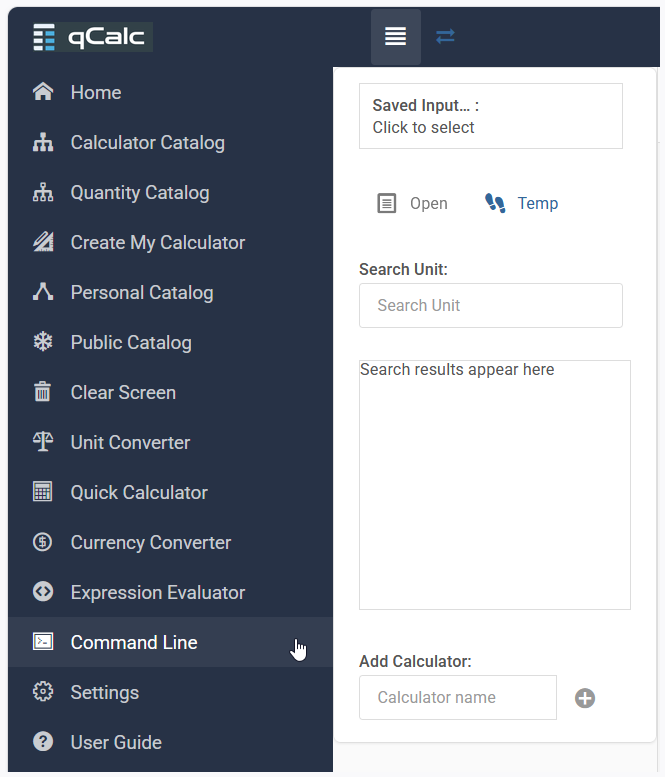
Main and secondary sidebar
Secondary sidebar options
Open the secondary sidebar with the secondary-sidebar button in the top bar.
Saved Input: Open
Use Saved Input to select a qCalc input file from your computer, then select Open. Saved input files contain calculator input data that was previously downloaded from qCalc. Opening one adds the corresponding calculator and restores the saved values when the file is compatible with the current site.
Only choose files you trust. If a file does not load, confirm that it is a qCalc input file and that the calculator it belongs to is available on this site.
Temp
Use Temp to open the temporary saved-input area provided by the site. It is useful for returning to temporary work without browsing for a downloaded file. Treat temporary work as short-lived and save an input file if you need to keep it.
Search Unit
Enter part of a unit name in Search Unit. Results appear below the field as you type. Select a result when you need to identify or use that unit in a calculator.
This searches units, not calculator names. To find a calculator, use the catalog search described below.
Add Calculator
Enter a calculator name in Add Calculator, then select the plus button. qCalc adds the matching calculator to the work area without requiring you to browse through categories first.
Use the calculator's qCalc name when you know it. If nothing opens, try searching the catalog for a title or keyword, then select the calculator from the results. A calculator name is not necessarily the same as the wording in its description.
Finding calculators
Browse the catalogs
- Open Calculator Catalog, Public Catalog, or Personal Catalog.
- Select a category or subcategory.
- Review the calculator title and description.
- Select a calculator title to open it.
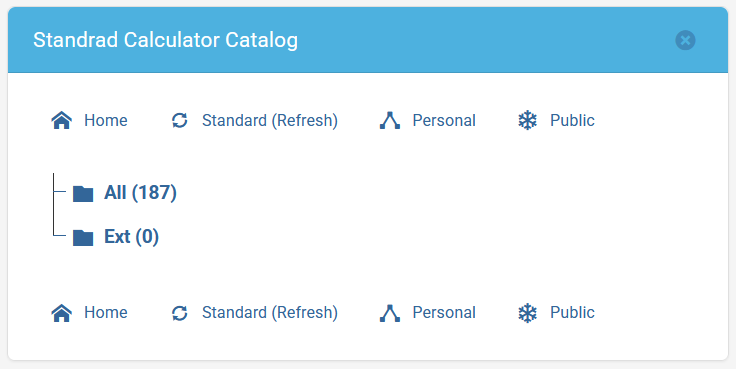
Standard calculator catalog
You can use the navigation links (either at the top or bottom of the catalog screen) to move between the home page and the Standard, Personal, and Public catalog views.
Search the catalog

Search the catalog from top navigation bar
Use the Search Catalog field in the page header when it is visible, or open the catalog search page and enter a word or phrase. Search can return several kinds of results:
- Standard Calculator Search Results: calculators supplied as part of the standard catalog.
- Public Calculator Search Results: calculators made available in the public catalog.
- Quantity Search Results: matching quantities or units.
Select a calculator result to add it to the work area. Refine the search with a more specific term if the result list is too large. Search terms can describe a calculator's purpose, subject, or title.
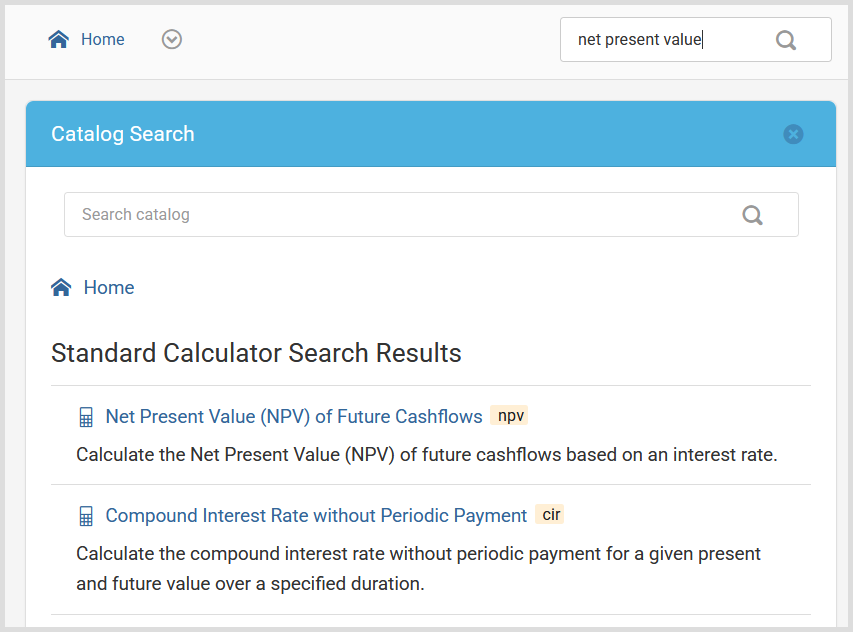
Catalog search results
Using a calculator
- Open a calculator from a catalog, search result, or Add Calculator.
- Read the labels and any help text beside the inputs.
- Enter values in the requested format. Include units when the field expects a physical quantity, such as
5 mor16 ft. - Select the calculator's run or submit control.
- Review the result, units, warnings, and any validation messages.
A calculator may produce text, tables, charts, images, or other rich results. Scroll within the card or the page to see all of the output.
A validation message normally identifies an input that needs attention. Correct that field and run the calculator again. If the result seems unexpected, first check units, decimal separators, and the assumptions described in the calculator help.
Working with multiple calculators
Each calculator opens in its own card. Keep several cards open to compare results or use one result while filling in another. Use a card's close button when you no longer need it. Clear Screen closes the current calculator workspace at once.
Calculator card menu
Open the menu in a calculator card to see the actions available for that card. Depending on whether you are signed in and on the calculator type, the menu can include:
- Save the current variant.
- Create a new variant.
- Save or check the current input before saving it.
- Save the input to a file.
Signed-in users may also see additional account-related actions. The available menu items can differ between calculators.
Saving and restoring work
Save input to a file
To keep the values currently entered in a calculator:
- Open the calculator card menu.
- Choose Save Input to File....
- Complete any confirmation or input-check step shown by qCalc.
- Keep the downloaded file in a convenient location.
The saved file is intended for restoring calculator inputs, not for manually editing as a general data file.
Reopen saved input
Open the secondary sidebar, select Saved Input, choose the saved file, and select Open. qCalc restores the input in a new or matching calculator card when possible.
Save important work before closing the browser or clearing the screen. A browser session is not a substitute for a saved input file.
Variants
A variant is a saved version of a calculator's inputs or setup. Signed-in users can use Save Current Variant to preserve the current state and Create New Variant to start another variation. Use My Variants from your profile to review variants available to your account.
Variants are useful for comparing cases such as different prices, dimensions, rates, or assumptions. They are different from a downloaded input file: a variant is associated with your qCalc account, while an input file is stored on your device.
User accounts
Open the user menu in the top bar. The menu shows Guest when you are not signed in.
Guest access
Guests can use the calculators and browse the public parts of qCalc, subject to the site's configuration. Guest work may not be associated with a permanent account, so sign in before using account-specific features.
Sign up and sign in
Select Sign Up to create an account, or Login to use an existing one. Follow the form's instructions. Some qCalc sites may offer an external sign-in provider as well as a qCalc account.
If you forget your password, use Forgot Password? when that link is available. Some installations disable password reset; in that case, contact the support person for the site.
My profile
After signing in, select your username and choose My profile. Your profile page can provide links to your personal information, email settings, calculators, catalog, and variants.
Account settings
Choose Account settings to update the account information exposed by the site. Choose Change Password to set a new password. Use Logout when you finish on a shared or public computer.
The profile page can include these user areas:
- My Info: personal account information.
- E-Mail: email address management.
- My Catalog: your personal calculator catalog.
- My Variants: variants saved to your account.
- My Calculators: calculators associated with your account.
The exact options depend on the site's account configuration and your permissions.
Getting help
General qCalc help
Select User Guide in the main sidebar. You can also use the Quick Tour page when it is available. The tour provides separate introductions to the qCalc interface, calculation workflow, and account features.
Calculator-specific help
If a calculator has documentation, a help icon appears in its card header. Select it to open help for that calculator. Read this before entering unfamiliar values: it may explain the calculation, expected units, assumptions, input formats, and interpretation of the result.
Not every calculator has a help page. If no help icon is shown, use the field labels and help text provided by the calculator.
Contact and feedback
For questions about a site's availability, account access, missing calculators, or unexpected behavior, use the site's contact/support channel. The About qCalc page also provides general project information and a contact link when configured.
When reporting a problem, include the calculator name, the values or units you entered, the message shown by qCalc, and the approximate time of the problem. Do not include passwords, API keys, or other private information.
Practical tips
- Check units before trusting a result.
- Read calculator-specific help before using an unfamiliar calculator.
- Save important inputs to a file or to your account as a variant.
- Use the catalog search for calculators and Search Unit for units; they serve different purposes.
- Sign in before saving account-specific variants or working with your personal catalog.
- On a phone or tablet, open the required sidebar with its top-bar button and close it again to return to the work area.
- For consequential financial, health, engineering, or safety decisions, verify the result with an appropriate professional or independent source.