
Calculator Meta Functions
Calculator __info() Metadata Guide
Every qCalc calculator is a Python function with a companion metadata function named <calculator_name>__info(). When this function exists, qCalc considers the corresponding function (without __info in name) as a calculator.
The metadata function suffix has a double underscore followed by info i.e. __info(). The function name may or may not have underscores in it e.g. wall_paint() or bmi(), but it is recommended not to use double underscore other than metadata function.
Metadata function __info() returns a dictionary that controls the calculator's title, instructions, inputs, layout, and optional follow-up actions.
# metadata function of the calculator named 'wall_paint'
def wall_paint__info():
    return {'title': 'Paint Required for a Wall'}

# calculator function named 'wall_paint'
def wall_paint(width='12 ft', height='8 ft', coats=2):
    # calculations ...
    return {'Paint needed': gallons, 'Tins to buy': tins}
An empty dictionary is valid, but a title is strongly recommended:
def wall_paint__info():
    return {}
qCalc provides defaults for omitted keys. Start with title, desc, and, when needed, schema; add the other keys only when they make the calculator easier to use.
Quick Reference
Following table lists down the optional elements of a metadata function:
Info Keys
| Key | Type | Purpose |
|---|---|---|
title |
string | Calculator title shown to the user. |
desc |
string | Short explanation shown above the inputs. |
calculate |
string | Caption for the calculation button. |
schema |
dict | Per-input widget, choices, initial value, labels, and validation options. |
autofill |
dict | Fill several inputs after a user chooses one value. |
related |
dict | Build dependent selection lists, such as country -> state -> city. |
showhide |
dict | Show or hide inputs when another input changes. |
anyof |
dict | Keep only one value in each group of alternative inputs. |
images |
dict | Place images around the calculator. |
row |
list | Put named inputs on the same row. |
col |
list or integer | Start input columns. |
outcol |
list or string | Put selected output values in a second output column. |
step2 |
list | Offer a follow-up calculator or action after a successful result. |
kins |
comma-separated string | Related calculators displayed in the Related section. |
tags |
comma-separated string | Search and catalog tags. |
xpr |
bool | Show or hide expression actions. Defaults to True. |
url |
bool | Show or hide the generated Browse link. Defaults to True. |
loop |
bool | Show or hide the Redo action. Defaults to True. |
script |
string | Trusted JavaScript used by client-side metadata features. |
onsubmit |
string | Trusted JavaScript run when the form is submitted. |
inserts |
dict | Trusted HTML placed at named points in the calculator template. |
template |
string | Advanced template override. |
Schema Keys
| Key | Type | Purpose |
|---|---|---|
type |
string | Type of a parameter e.g. choice, radio, checkbox, etc. |
choices |
string | list of choices if the parameter type is choice |
initial |
string | default or initial value |
Key names are case-sensitive.
A Complete Example
This calculator uses info keys: title, desc, calculate, schema and tags, schema keys: type, choices, and initial:
# following line is required for back-end calculator creation
# from qcore import Qty

# Complete example, you can copy/paste to create in front end
def wall_paint__info():
    return {
        'title': 'Paint Required for a Wall',
        'desc': 'Enter the wall size and paint coverage. The estimate includes every coat.',
        'calculate': 'Estimate',
        'schema': {
            'coats': {
                'type': 'choice',
                'choices': {1: 'One coat', 2: 'Two coats'},
                'initial': 2,
            },
        },
        'tags': 'home,painting,estimation',
    }


def wall_paint(width='12 ft', height='8 ft', coverage='350 sqft/gal',
               tin_size='1 gal', coats=2):

    width_q = Qty(width, 'ft')
    height_q = Qty(height, 'ft')
    coverage_q = Qty(coverage, 'sqft/gal')
    tin_size_q = Qty(tin_size, 'gal')

    area = width_q * height_q * int(coats)
    paint = area / coverage_q
    tins = paint / tin_size_q

    return {'Paint needed': Qty(paint, 'gal'), 'Tins to buy': tins}
Input names, such as coats, in metadata must match function parameter names.
Core Presentation Keys
Info Key: title, desc, and calculate
title is the visible calculator name. Use an action-oriented, plain-language title:
'title': 'Paint Required for a Wall'
desc appears above the form. Explain the calculation, assumptions, or a material limitation in one short paragraph:
'desc': 'Estimate monthly loan payments. The estimate does not include taxes or insurance.'
The default button label is Calculate. Change it only when a short verb (one word if possible) better fits the task:
'calculate': 'Convert'
'calculate': 'Estimate'
'calculate': 'Suggest'
Info Key: images
images places one or more images at the top, bottom, left, or right of the calculator. Paths should normally be relative to calculator static files.
'images': {
    'top': ['calculators/ext/circle.jpg', '<another top image>'],
    'bottom': ['<bottom image path>']
}
Each position accepts a list of images (e.g. you can have another image at the top section, enter it separated by comma). Use images that clarify the task, such as a wall diagram for a paint calculator.
Info Key: schema: Input Widgets and Field Options
Without a schema, qCalc derives fields from function parameters, annotations, and defaults. Use schema to clearly specify and improve a particular input.
'schema': {
    'parameter_name': {
        'type': 'choice',
        'choices': {
            'stored_value': 'Text the user sees',
            'another_value': 'Another text',
        },
        'initial': 'stored_value',
        'label': 'Friendly field label',
        'help_text': 'Brief instruction for this input.',
        'required': True,
    },
}
Useful properties include type, choices, initial, label, help_text, required, disabled, and attrs. qCalc also forwards ordinary Django-form properties such as validators and error messages where supported.
Info Key: choice, radio, and multiplechoice
Use choice, radio, or multiplechoice for a known set of values. A dictionary key is the value passed to Python; its value is the label shown to users.
'schema': {
    'payment_frequency': {
        'type': 'radio',
        'choices': {'monthly': 'Monthly', 'yearly': 'Yearly'},
        'initial': 'monthly',
    },
    'services': {
        'type': 'checkboxselectmultiple',
        'choices': {'design': 'Design', 'build': 'Build', 'test': 'Testing'},
    },
    'notes': {'type': 'textarea', 'help_text': 'Optional notes for this estimate.'},
}
Searchable selects, tables, and lists
Use qsel2 for searchable long lists:
'schema': {
    'time_zone': {
        'type': 'qsel2',
        'choices': {'UTC': 'UTC', 'Asia/Dhaka': 'Asia/Dhaka'},
        'initial': 'UTC',
    },
}
For tables and repeated lists, use annotations. qCalc enables their widgets automatically.
import pandas as pd
from qcore import qtable, qlist


def material_total__info():
    return {
        'title': 'Material Total',
        'schema': {
            'items': {'initial': pd.DataFrame(columns=['Item', 'Quantity', 'Unit price'])},
        },
    }


def material_total(items: qtable, discounts: qlist = [0, 0, 0]):
    return items
For new calculator code that does not need pandas operations, qtbl is the safer table annotation and receives a plain {'columns': ..., 'data': ...} dictionary.
Input Interaction Patterns
Make sure every field named by these patterns is a calculator parameter.
autofill: Fill fields from a selection
Use autofill when a selected product, material, or preset supplies known values:
'schema': {
    'brand': {
        'type': 'choice',
        'choices': {'standard': 'Standard', 'premium': 'Premium'},
        'initial': 'standard',
    },
},
'autofill': {
    'brand': {
        'fields': ['coverage', 'tin_size'],
        'autofill': {
            'standard': ['350', '1'],
            'premium': ['425', '1'],
        },
    },
},
# following import is required for back-end calculator creation
# from qcore import Qty
# import is not required for front end calculator creation

# Complete example, you can copy/paste to create in front end
def wall_paint2__info():
    return {
        'title': 'Paint Required for a Wall v2',
        'desc': 'Enter the wall size, brand and paint coverage. Brand choice autofill coverage and tin size.',
        'calculate': 'Estimate',
        'schema': {
            'brand': {
                'type': 'choice',
                'choices': {'standard': 'Standard', 'premium': 'Premium'},
                'initial': 'standard',
            },
            'coats': {
                'type': 'choice',
                'choices': {1: 'One coat', 2: 'Two coats'},
                'initial': 2,
            },
        },
        'autofill': {
            'brand': {
                'fields': ['coverage', 'tin_size'],
                'autofill': {
                    'standard': ['350', '1.0'],
                    'premium': ['600', '1.5'],
                },
            },
        },
        'tags': 'home, painting, estimation',
    }


def wall_paint2(
    width='12 ft',
    height='8 ft',
    brand='standard',
    coverage='350 sqft/gal',
    tin_size='1 gal',
    coats=2
):

    width_q = Qty(width, 'ft')
    height_q = Qty(height, 'ft')
    coverage_q = Qty(coverage, 'sqft/gal')
    tin_size_q = Qty(tin_size, 'gal')

    area = width_q * height_q * int(coats)
    paint = area / coverage_q
    tins = paint / tin_size_q

    return {
        'Paint needed': Qty(paint, 'gal'),
        'Tins to buy': tins
    }
The fields order must match the value order in every autofill entry.
related: Dependent selections
Use related for country -> state -> city, department -> team -> employee, and similar chains. Define fields in display order; relation is a nested dictionary with a final list.
# Complete example, you can copy/paste to create in front end
def demo_related__info():
    return {
        'title': 'Demonstrating related metadata',
        'related': {
            'address': {
                'fields': {
                    'country': 'Canada',
                    'province': 'Ontario',
                    'city': 'Toronto',
                },
                'relation': {
                    'Canada': {
                        'Ontario': ['Toronto', 'Ottawa'],
                        'Quebec': ['Montreal', 'Quebec City'],
                    },

                    'USA': {'California': ['Los Angeles', 'San Diego']},
                },
            },
        },
    }


def demo_related(country, province, city):
    return f'Selection: {country}, {province}, {city}'
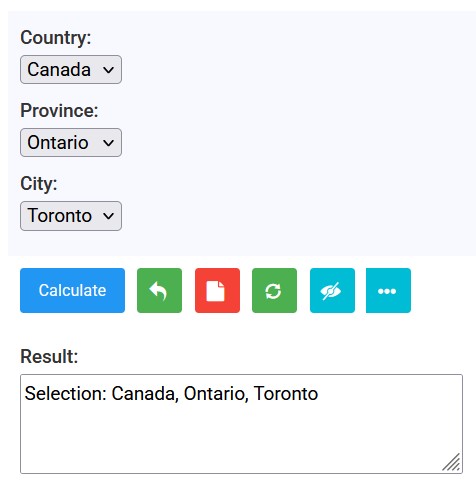
Fig: How the 'demo_related' calculator looks inside qCalc
The current implementation supports up to four levels of dependency (e.g. country, state, city, zipcode). Do not put the same field in both related and anyof or showhide; these features can compete for control of it.
showhide: Reveal inputs only when needed
Use showhide to keep the form small. In its basic form, listed fields are visible only while the controlling input is empty:
'showhide': {'use_custom_coverage': {'fields': ['coverage']}}
For typical forms, use a callback in script. The callback receives the controlling value and returns one Boolean for every field: true shows it; false hides it.
'showhide': {
    'rate_mode': {'fields': ['custom_rate'], 'callback': 'showCustomRate'},
},
'script': '''
function showCustomRate(value) {
    return [value === 'custom'];
}
''',
For one simple rule, qCalc also supports a compact callback such as 'callback': '@==100'. Prefer a named function for anything more complex. Use the special __ key to hide a field unconditionally:
'showhide': {'__': {'fields': ['internal_reference']}}
anyof: Alternative ways to provide one value
Use anyof when inputs are alternatives. When a user enters one value, qCalc clears the others in that group:
'anyof': {
    'circle_size': {'fields': ['radius', 'diameter', 'area']},
}
You may define several groups. anyof does not validate that the remaining value is mathematically sufficient, so the Python function must still handle missing values correctly.
Layout Keys
qCalc normally displays inputs in function-parameter order. Use layout options only when they improve scanning.
row
row groups fields on the same row. Join field names with hyphens:
'row': ['width-height', 'coverage-tin_size']
col
col starts new input columns. It accepts an integer count or field group specifications:
'col': 2
'col': ['length-width', 'height-depth']
Start with row; use columns only when the result stays readable on narrow screens.
outcol
outcol moves output fields into a second output column. qCalc lowercases a return label, converts spaces to underscores, and adds __r. For example, Monthly payment becomes monthly_payment__r.
def mortgage__info():
    return {'outcol': ['monthly_payment__r', 'total_interest__r']}


def mortgage(principal, rate, years):
    return {
        'Monthly payment': 1234.56,
        'Total interest': 44444.44,
        'Total paid': 144444.44,
    }
Use this for charts, tables, long explanations, or results that deserve separate visual emphasis.
Follow-up Actions and Discovery
step2
step2 adds buttons after a successful calculation. Every item has step, caption, and spec; a run action also needs func.
Open another calculator with values pre-filled:
'step2': [
    {
        'step': 'run',
        'func': 'bmr',
        'caption': 'Calculate BMR',
        'spec': {'weight': 'weight', 'height': 'height'},
    },
],
Estimate costs from returned quantity values. include and exclude select returned labels; '*' includes all outputs before exclusions:
'step2': [
    {
        'step': 'cost',
        'caption': 'Calculate Material Cost',
        'spec': {'include': ['*'], 'exclude': ['Work Volume']},
    },
],
Open a returned qCalc chart object in its chart calculator:
'step2': [
    {'step': 'chart', 'caption': 'Explore chart', 'spec': {'field': 'chart'}},
],
kins and tags
kins lists related calculator IDs. qCalc resolves each one to its visible title:
'kins': 'bmi,bmr,calorie'
tags makes a calculator easier to find in catalog search:
'tags': 'mortgage,loan,finance,monthly payment'
Only include real, useful next calculators and short phrases a user would search for.
xpr, url, and loop
These switches control standard after-calculation controls:
'xpr': False,   # Hide expression and staff timing actions.
'url': False,   # Hide the generated Browse link.
'loop': False,  # Hide the Redo action.
All default to True. qCalc automatically disables looping for rich results such as tables, charts, images, pages, and long text.
Advanced Trusted Markup and JavaScript
script
script is inserted as JavaScript on the calculator page, most often to provide a showhide callback. Treat it as reviewed application code. Do not place untrusted user text in it.
onsubmit
onsubmit runs in a jQuery submit handler immediately before the form is submitted. The calculator instance ID is available as _cid.
'onsubmit': '''
if (!document.getElementById('id_' + _cid + '_email').value) {
    alert('Enter an email address before requesting this quote.');
    event.preventDefault();
}
''',
Use server-side validation for rules that protect data or business logic; browser code can be bypassed.
inserts
inserts renders trusted HTML at standard template positions: card_top, form_top, form_bottom, out_top, and out_bottom.
'inserts': {
    'form_top': '<p class="helptext">Measurements may be entered in ft, m, or cm.</p>',
    'out_bottom': '<p class="helptext">Round up when buying full tins.</p>',
},
For reusable links and command buttons, prefer helpers such as cal_link, page_link, and command_button rather than constructing URLs and HTML by hand. Never interpolate untrusted content into an insert.
template
template selects a project-specific calculator template:
'template': 'v4.27'
This is an advanced integration option. Most calculator authors should use the configured default.
Parameterized Metadata
An __info() function may accept __info. qCalc passes this selected mode when the calculator is opened. It is useful when the mode changes available choices, such as length versus weight conversion.
def unit_converter__info(__info=None):
    category = (__info or 'length').lower()
    choices = {
        'length': {'m': 'Metres', 'ft': 'Feet'},
        'weight': {'kg': 'Kilograms', 'lb': 'Pounds'},
    }[category]
    return {
        'title': f'{category.title()} Unit Converter',
        'schema': {'from_unit': {'type': 'choice', 'choices': choices}},
    }
The calculator function may also accept __info if it needs the selected mode during calculation.
Author Checklist
- Define
<calculator_name>__info()beside the calculator function. - Add a plain-language
titleand a concisedescwhen the calculation needs context. - Match every metadata field name to a parameter exactly.
- Use
schemafor meaningful choices, labels, help text, and widgets. - Test every
autofill,related,showhide, andanyofinteraction in a browser. - Return correctly named outputs.
- Use JavaScript and HTML hooks only for trusted, reviewed code.
- Use user-friendly tags and titles that make the calculator discoverable.